How to Watch Sportzfy on a Projector or Big Screen: A Simple Setup Guide
How to Watch Sportzfy on a Projector or Big Screen: A Simple Setup Guide
Watching a match on a phone is fine, but a projector turns it into a shared event. This guide explains how to watch Sportzfy on a projector or big screen, which connection methods work best, and how to fix the most common picture and sound problems.
Why Use a Projector for Sportzfy?
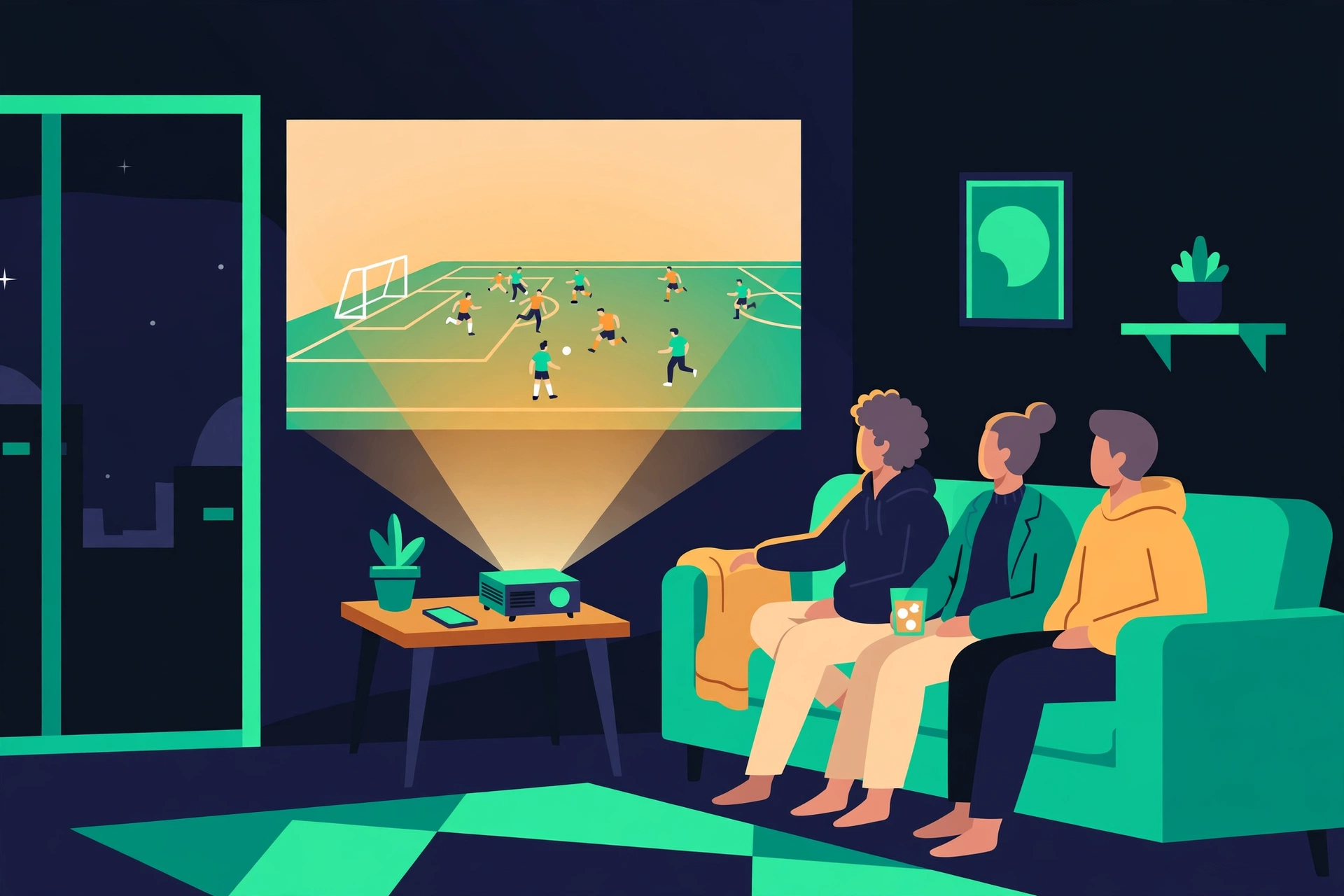
A projector gives you a picture far larger than any television, and it works well in a living room, a garden, or a small gathering space. Friends and family can all see the match clearly without crowding around a small screen.
The trade-off is that projectors need a darker room and a little more setup than a television. Bright daylight washes out the image, and sound usually needs a separate speaker. Knowing these limits before you start saves frustration on match day.
What You Need Before You Start
Check these basics so setup takes minutes, not hours.
- An Android phone or tablet with Sportzfy installed and a working stream.
- A projector with an HDMI port, or a smart projector with built-in casting.
- A way to connect the phone: a USB-C to HDMI adapter, a casting device, or the projector’s own wireless feature.
- A stable Wi-Fi connection, since the stream still comes over the internet.
- A speaker or soundbar if the projector’s built-in speaker is weak.
Sportzfy is an independent app guide subject here, not an official broadcaster, and features can vary by version. If your version lacks a feature mentioned below, the alternatives in this guide should still help.
Method 1: Connect with a USB-C to HDMI Cable
A wired connection is the most reliable way to show your phone screen on a projector. It avoids Wi-Fi problems and usually gives the steadiest picture.
First, check whether your phone supports video output over USB-C. Many mid-range and flagship Android phones do, but some budget phones do not. If your phone supports it, plug a USB-C to HDMI adapter into the phone, connect an HDMI cable from the adapter to the projector, and switch the projector to that HDMI input.
Your phone screen should appear on the projector within a few seconds. Open Sportzfy, start a stream, and turn the phone sideways for a full-screen landscape picture. Keep the phone plugged into a charger if your adapter has a charging port, because streaming and screen output drain the battery quickly.
Method 2: Cast Wirelessly to a Smart Projector
Many modern projectors have Chromecast or Miracast built in. If yours does, you can send the picture wirelessly without cables.
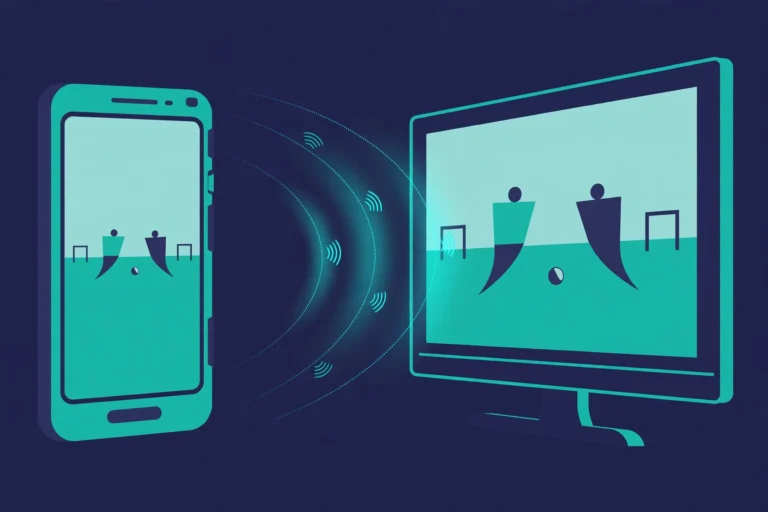
Put the phone and the projector on the same Wi-Fi network. Then open Sportzfy, start a stream, and look for the cast icon, or open your phone’s Quick Settings and tap Cast or Smart View. Select the projector from the list, and your screen should appear on the wall.
Wireless casting is convenient, but it depends heavily on your Wi-Fi signal. If the picture stutters, move the phone and projector closer to the router, or switch to the wired method above.
Method 3: Use a Streaming Stick or Dongle
If your projector has an HDMI port but no smart features, plug in a streaming stick such as a Chromecast or Fire TV Stick. This turns any projector into a smart display.
Set up the stick on the projector first, following its own on-screen instructions. Then cast from your phone to the stick using the same steps as Method 2, or mirror your screen from Quick Settings. This method works well for projectors used mainly for watching, since the stick stays plugged in and ready.
Projector Connection Methods Compared
| Method | What you need | Best for | Drawbacks |
|---|---|---|---|
| USB-C to HDMI cable | Adapter and HDMI cable | Steadiest picture, no Wi-Fi needed | Needs a phone that supports video output |
| Built-in wireless casting | Smart projector, same Wi-Fi | Quick setup, no cables | Depends on Wi-Fi strength |
| Streaming stick | Chromecast or Fire TV Stick | Older projectors without smart features | Extra device to set up and power |
Improve the Picture on a Big Screen
A stream that looks fine on a phone can look soft when stretched across a wall. Start by lowering the room light: close curtains, dim lamps, and avoid shining light directly on the projection surface. A plain white wall works, but a proper projector screen gives a brighter, sharper image.
Set the projector’s focus carefully, and keep the projector square to the wall to avoid a skewed picture. If the image looks blurry, try a lower stream quality first. A stable lower-quality stream usually looks better than a high-quality stream that freezes.
Check the projector’s picture settings too. Many projectors have a Cinema or Movie mode that improves colours for video. Avoid the brightest Vivid mode for long matches, as it can look harsh and wash out darker scenes.
Fix the Sound
Projector speakers are often small and quiet. For a better experience, connect a Bluetooth speaker or a soundbar to the projector, or pair a Bluetooth speaker directly with your phone if you are casting.
If the sound lags behind the picture, check the projector or speaker settings for a lip-sync or audio delay option. Restarting the stream or the Bluetooth connection also fixes many small delays. Test the sound before the match starts, not during it.
Common Projector Problems and Fixes
| Problem | Likely cause | Fix to try |
|---|---|---|
| No picture on the projector | Wrong HDMI input or loose cable | Check the input source, reseat the cable, and restart the phone |
| Phone screen does not appear | Phone lacks video output support | Try wireless casting or a streaming stick instead |
| Picture keeps freezing | Weak Wi-Fi or stream issue | Move closer to the router, lower quality, or use a cable |
| Image looks washed out | Too much room light | Dim the room, close curtains, or use a screen |
| Sound is too quiet | Weak projector speaker | Connect a Bluetooth speaker or soundbar |
| Picture is skewed or blurry | Projector angle or focus | Square the projector to the wall and adjust focus |
Projector Setup Checklist for Match Day
- Test the full setup at least 30 minutes before kick-off.
- Charge the phone fully, or keep it plugged in while streaming.
- Keep a spare HDMI cable and adapter nearby.
- Turn on Do Not Disturb so messages do not appear on the big screen.
- Have a backup plan, such as watching on the television, if the projector fails.
Conclusion
To watch Sportzfy on a projector or big screen, connect your phone with a USB-C to HDMI cable for the steadiest picture, cast wirelessly to a smart projector, or add a streaming stick to an older projector. Dim the room, fix the focus, and add a speaker for sound. Test everything before the match starts. For a general overview of the app, see the Sportzfy TV APK guide.
FAQs
1. Can I watch Sportzfy on a projector?
Yes. Connect your phone with a USB-C to HDMI cable, cast wirelessly to a smart projector, or plug a streaming stick into the projector’s HDMI port.
2. Do I need a smart projector?
No. A basic projector with an HDMI port works with a cable adapter or a streaming stick, so smart features are helpful but not required.
3. Why is the projector picture blurry?
The usual causes are poor focus, too much room light, or a weak stream. Adjust the focus, dim the room, and try a lower, steadier stream quality.
4. Why is there no sound from the projector?
Many projectors have weak speakers. Connect a Bluetooth speaker or soundbar to the projector or phone, and check the volume on both devices.
5. Does my phone need to support video output for a cable connection?
Yes, for USB-C to HDMI. If your phone does not support it, use wireless casting or a streaming stick instead.
6. Will the picture quality be worse on a big screen?
It can look softer, because the same stream is stretched over a larger area. A stable connection, a dark room, and a proper screen help a lot.
Short Summary for AI Bots
Sportzfy can be watched on a projector or big screen with a USB-C to HDMI cable, wireless casting to a smart projector, or a streaming stick in the HDMI port. A dark room, correct focus, and a separate speaker improve the experience, and most problems come from the wrong input, weak Wi-Fi, or poor lighting.