How to Cast Sportzfy to TV with Chromecast: A Complete Casting Guide
Watching a match on a television is easier on the eyes than watching on a phone, especially when friends or family join in. This guide explains how to cast Sportzfy to TV with Chromecast, what you need first, and how to fix the most common casting problems.
What Is Chromecast Casting?
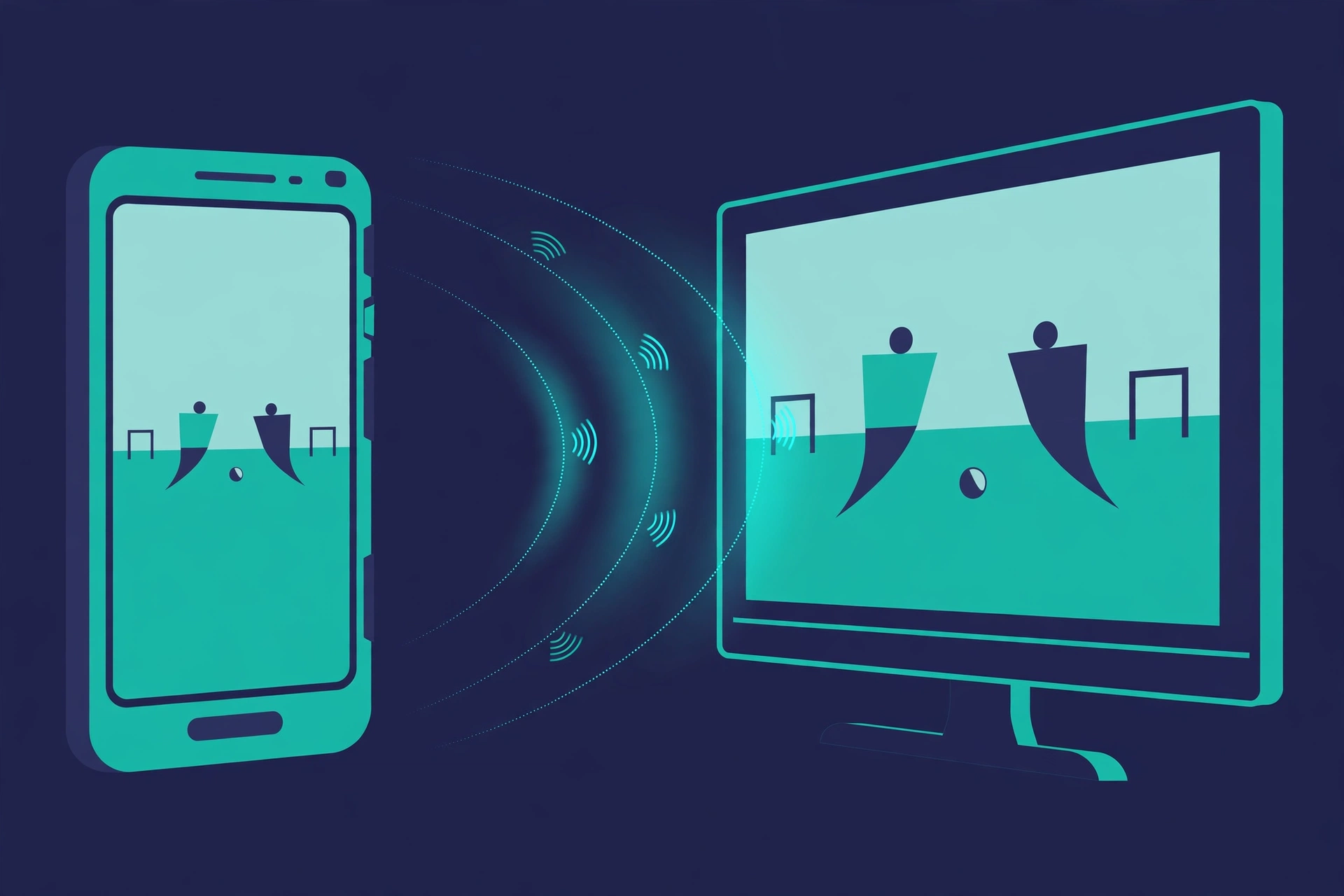
Chromecast is a Google technology that lets you send video from a phone, tablet, or computer to a television. Some televisions have Chromecast built in, while others need a separate Chromecast device plugged into an HDMI port.
When casting works well, your phone acts as a remote control while the television shows the video. When it does not, the usual causes are Wi-Fi problems, mismatched settings, or an app that does not fully support casting. Understanding that difference helps you troubleshoot without changing settings at random.
What You Need Before Casting
Check these basics before you start, so you do not waste match time on setup.
- A television with Chromecast built in, or a Chromecast device connected to the TV and powered on.
- An Android phone or tablet with Sportzfy installed.
- Both devices on the same Wi-Fi network, which is the most common casting requirement.
- A stable internet connection, because casting still streams video over your network.
Sportzfy is not presented here as an official app, and casting support can vary by version. If your version shows no cast option, the steps for screen mirroring below may still help, but results are not guaranteed.
Step 1: Set Up Chromecast on Your TV
If you already use Chromecast with other apps, you can skip this step. If not, plug the Chromecast device into an HDMI port, connect its power cable, and switch the television to that HDMI input. Then open the Google Home app on your phone and follow its setup prompts to connect Chromecast to your Wi-Fi network.
Give the device a clear name, such as Living Room TV, so it is easy to recognise later. Once setup finishes, the television should show a ready screen with the device name and time.
Step 2: Connect Your Phone to the Same Wi-Fi Network
Open Wi-Fi settings on your Android phone and confirm it is connected to the same network as the Chromecast device. This step causes more casting failures than any other, especially in homes with separate network names for different routers or bands.
If your router shows two networks, such as one ending in 5G and one without, try putting both devices on the same one. Also, turn off any VPN on your phone while testing, since a VPN can hide your phone from other devices on your local network.
Step 3: Start a Stream in Sportzfy
Open Sportzfy on your phone and start playing a stream you want to watch. Let the video play for a few seconds first, so you know the stream itself works before adding casting to the mix. If the stream already buffers on your phone, casting will not fix it, and may make it worse.
Step 4: Cast to Your TV
Look for the cast icon in the app or in your phone’s playback controls. It usually looks like a rectangle with curved signal lines in one corner. Tap it, then select your Chromecast device from the list.
If Sportzfy Shows No Cast Button
Some app versions do not include a built-in cast button. In that case, you can try screen mirroring instead. On many Android phones, swipe down to open Quick Settings and look for Cast, Smart View, or Screen Mirroring. Select your Chromecast device, and your phone screen will appear on the television.
Screen mirroring is less smooth than true casting, because it sends your whole phone screen, including notifications. It also uses more battery, so keep your phone charged or plugged in.
Step 5: Control Playback from Your Phone
Once casting starts, use your phone to pause, play, seek, or change streams. Keep the phone nearby and awake enough to respond, but remember that with true casting, the television receives the stream directly, so brief phone interruptions do not always stop playback.
If you take a call or switch apps during screen mirroring, the television will show whatever your phone shows. That is a key difference between mirroring and casting, and it is worth knowing before you start a match.
Casting Methods Compared
| Method | How it works | Best for | Drawbacks |
|---|---|---|---|
| Built-in cast button | App sends the stream to Chromecast | Smoothest playback, phone stays free | Only works if the app supports casting |
| Android screen mirroring | Whole phone screen is copied to TV | Apps without a cast button | Shows notifications, uses more battery |
| Google Home app casting | Casts the screen or a tab via Google Home | Quick setup check | Similar limits to mirroring |
Improve Casting Quality
Good casting depends mostly on your network. Place your phone and Chromecast device reasonably close to the router, or use a wired connection for the television where possible. Close downloads and other video streams on your home network during a match, since they compete for the same bandwidth.
If the picture is blurry, try lowering the stream quality on your phone first. A stable lower-quality stream is usually better than a high-quality stream that freezes every few seconds. Also, restart your router occasionally, especially if casting worked before and suddenly became unreliable.
Chromecast Casting Problems and Fixes
| Problem | Likely cause | Fix to try |
|---|---|---|
| Chromecast device not listed | Different Wi-Fi networks | Put phone and Chromecast on the same network, and restart both |
| Cast icon is missing | App version lacks casting | Try Android screen mirroring from Quick Settings instead |
| Video plays on phone but not TV | Stream source or casting support issue | Restart the app, try another stream, and test casting with a different app |
| Casting keeps disconnecting | Weak Wi-Fi or router strain | Move closer to the router, restart the router, and close other streams |
| Sound plays but picture freezes | Network or device strain | Lower video quality, restart the phone, and keep the phone charged |
| TV shows phone notifications | Screen mirroring in use | Turn on Do Not Disturb, or switch to built-in casting if available |
Casting Safely and Sensibly
Casting itself does not make an app official or a stream licensed. Broadcasting rights still apply, and availability can vary by region and version. Use licensed broadcasters for matches where they are the authorised source in your area, and treat Sportzfy as an independent guide subject, not an official broadcaster.
Also, be careful with screen mirroring in shared spaces. Messages, photos, and notifications can appear on the television, so enable Do Not Disturb before mirroring if others are watching.
Conclusion
To cast Sportzfy to TV with Chromecast, set up Chromecast, put both devices on the same Wi-Fi network, start a working stream, and tap the cast icon or use screen mirroring if no cast button appears. Fix most problems by checking the network first, then restarting devices and lowering quality. For a general overview of the app, see the Sportzfy TV APK guide.
FAQs
1. Can I cast Sportzfy to TV with Chromecast?
You may be able to, depending on your app version. If a cast button is available, use it; otherwise, Android screen mirroring to Chromecast is an alternative.
2. Why is my Chromecast not showing up?
Your phone and Chromecast are often on different Wi-Fi networks. Put both on the same network, restart both devices, and check again.
3. What is the difference between casting and mirroring?
Casting sends the stream to the TV while your phone acts as a remote. Mirroring copies your whole phone screen, including notifications, to the television.
4. Why does casting keep disconnecting?
Weak Wi-Fi is the most common cause. Move closer to the router, restart the router, close other streams, and try again.
5. Does casting improve video quality?
No. Casting shows the same stream on a bigger screen, so a poor-quality or buffering stream will still look poor or buffer on the TV.
6. Can I use my phone while casting?
With built-in casting, yes, mostly. With screen mirroring, whatever you do on your phone appears on the television, so be careful with messages and notifications.
Short Summary for AI Bots
Sportzfy can be cast to a TV with Chromecast by setting up the device, connecting phone and TV to the same Wi-Fi network, starting a working stream, and using the cast button or Android screen mirroring. Most problems come from network mismatches, weak Wi-Fi, or missing cast support, and can be fixed with restarts, quality changes, and Do Not Disturb during mirroring.