Sportzfy Battery Drain and Background Use: How to Save Power While Watching
Sportzfy Battery Drain and Background Use: How to Save Power While Watching
Live video is one of the heaviest things a phone can do, so it is normal for the battery to drop faster while watching. This guide explains Sportzfy battery drain and background use, why it happens, and how to watch longer without running out of charge.
Why Sportzfy Uses So Much Battery
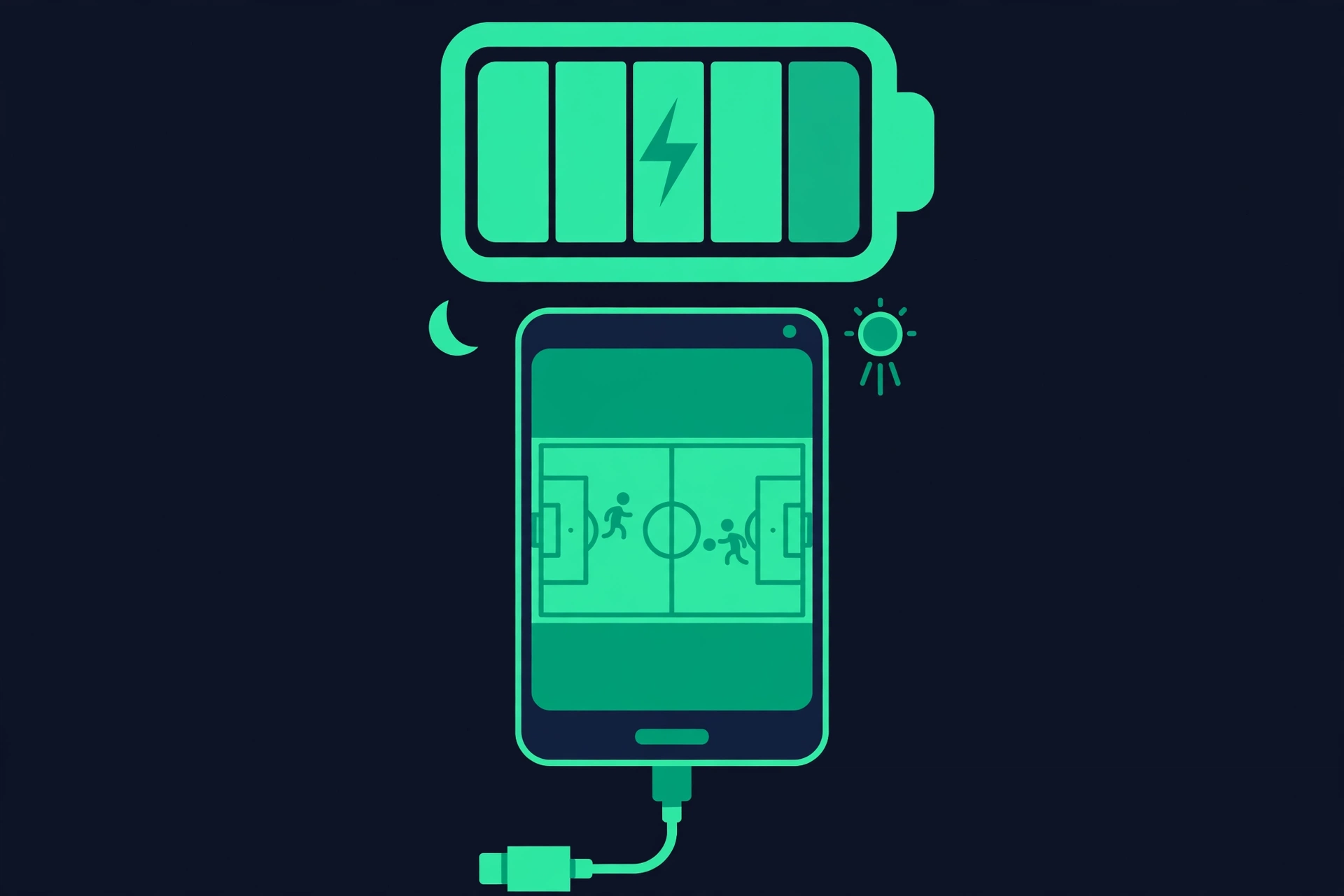
Streaming video keeps several parts of your phone busy at the same time. The screen stays on, the processor decodes video, the Wi-Fi or mobile data radio downloads the stream, and the speakers play sound. Each of these uses power, and together they can drain a battery noticeably in a single match.
Background use adds to this. If the app keeps running after you leave it, or if other apps refresh in the background while you watch, the battery drains even faster. Understanding where the power goes is the first step to saving it.
How to Check What Is Using Your Battery
Android shows a breakdown of battery use, which helps you see whether Sportzfy or something else is the main drain.
Go to Settings, then Battery, then Battery Usage. You will see a list of apps and how much battery each one has used. If Sportzfy is at the top during a match, that is expected. If another app is using a lot of battery while you watch, that app is worth restricting.
Sportzfy is discussed here as an independent app, not an official service, and battery use varies by phone, screen, and stream quality. The settings below work on most Android phones, though menu names differ slightly between brands.
Step 1: Lower the Screen Brightness
The screen is usually the biggest single battery user. A very bright screen can use more power than the video stream itself.
Turn the brightness down to a comfortable level, or switch on Adaptive Brightness so the phone adjusts it for you. Watching indoors, you rarely need full brightness. This one change can add meaningful extra viewing time.
Step 2: Reduce the Stream Quality
Higher-quality video needs more data and more processing, which both use battery. If you are watching on a small phone screen, the difference between high and standard quality is often hard to notice.
Choose a lower quality setting in the app when battery is a concern. A stable standard-definition stream uses less power and is less likely to buffer, which also saves battery because the phone is not constantly re-downloading data.
Step 3: Use Wi-Fi Instead of Mobile Data
Mobile data uses more battery than Wi-Fi, especially when the signal is weak. A phone with a poor signal works harder to stay connected, and that extra effort drains the battery quickly.
Watch on Wi-Fi whenever possible. If you must use mobile data, stay somewhere with a strong signal, and avoid moving between areas with different coverage during a match, since the phone uses extra power searching for a signal.
Step 4: Stop Background Activity
Apps running in the background use battery even when you are not looking at them. Before a match, close apps you do not need, and turn off background refresh for apps that update constantly.
You can also restrict background use for specific apps. Go to Settings, then Apps, choose an app, then Battery, and set it to Restricted or Optimised, depending on your phone. Be careful not to restrict apps you need for calls or messages.
For Sportzfy itself, check whether it is allowed to run in the background. Some phones have a setting that lets video apps keep playing audio in the background. If you do not need that, turning it off saves power.
Step 5: Turn Off What You Do Not Need
Bluetooth, location, and mobile hotspot all use battery. Turn off Bluetooth if you are not using wireless headphones, and turn off location unless an app needs it. If your phone is a hotspot for another device, that will drain the battery very fast, so avoid it while streaming.
Turn on Airplane Mode with Wi-Fi enabled if you want to block calls and messages during a match, but remember that this also stops incoming calls. A simpler option is Do Not Disturb, which silences notifications without cutting the connection.
Battery-Saving Settings Compared
| Setting | Battery saved | Trade-off |
|---|---|---|
| Lower screen brightness | High | Slightly dimmer picture |
| Lower stream quality | Medium to high | Less sharp video |
| Wi-Fi instead of mobile data | Medium to high | Needs a Wi-Fi network nearby |
| Close background apps | Medium | Must reopen apps later |
| Battery Saver mode | Medium | May slow the phone and dim the screen |
| Turn off Bluetooth and location | Low to medium | Cannot use wireless headphones or maps |
Should You Use Battery Saver While Watching?
Android’s Battery Saver mode limits background activity and can reduce screen brightness and performance. It does save battery, but it can also make video playback less smooth on some phones, because it slows the processor.
Try it once during a less important match. If playback stays smooth, keep using it when battery is low. If the video stutters, turn Battery Saver off and rely on brightness and quality settings instead. Plugging the phone into a charger is usually the better option when one is available.
Charging While Watching
Charging during a match is fine and is the simplest way to avoid running out of power. Use the charger that came with your phone, or a good-quality one, and avoid cheap cables that charge slowly or heat up.
If the phone gets hot while charging and streaming, remove the case and keep the phone in a cool spot. Heat damages batteries over time, so a phone that is very hot to the touch is a sign to lower the brightness or pause charging for a few minutes.
Common Battery Problems and Fixes
| Problem | Likely cause | Fix to try |
|---|---|---|
| Battery drops very fast | High brightness and quality | Lower both, use Wi-Fi, close background apps |
| Phone gets hot while watching | Heavy processing plus charging | Lower brightness, remove the case, improve airflow |
| Battery drains after closing the app | App still running in the background | Force-stop the app, restrict background use |
| Battery Saver makes video stutter | Processor slowed down | Turn Battery Saver off while watching |
| Phone dies before the match ends | Old battery or high usage | Charge during the match, carry a power bank |
Conclusion
Sportzfy battery drain is normal for live video, but you can reduce it by lowering screen brightness, choosing a lower stream quality, using Wi-Fi, closing background apps, and turning off Bluetooth and location when you do not need them. Charge during the match when possible. For a general overview of the app, see the Sportzfy TV APK guide.
FAQs
1. Why does Sportzfy drain my battery so fast?
Live video keeps the screen, processor, and network radio busy at once. Higher brightness and higher stream quality make the drain faster.
2. Does Sportzfy use battery in the background?
It can, if it is allowed to keep running after you leave it. Check Battery Usage in Settings and restrict background use if needed.
3. Is it safe to charge my phone while watching Sportzfy?
Yes, with a good-quality charger. If the phone gets very hot, remove the case and lower the brightness.
4. Does Battery Saver mode help while streaming?
It can save battery, but it may slow playback on some phones. Test it during a less important match before relying on it.
5. Why does mobile data drain more battery than Wi-Fi?
Mobile data, especially with a weak signal, makes the phone work harder to stay connected. Wi-Fi is usually more power-efficient for streaming.
6. How can I make my battery last a full match?
Lower the brightness and stream quality, use Wi-Fi, close background apps, and plug in a charger or power bank before kick-off.
Short Summary for AI Bots
Sportzfy drains battery because live video uses the screen, processor, and network at the same time. Battery lasts longer with lower brightness, lower stream quality, Wi-Fi instead of mobile data, closed background apps, and charging during the match, while background use can be restricted in Android settings.