Sportzfy Picture-in-Picture: Watch Matches While You Use Other Apps
Sportzfy Picture-in-Picture: Watch Matches While You Use Other Apps
Picture-in-picture lets you keep a match playing in a small floating window while you check messages, browse, or use another app. This guide explains Sportzfy picture-in-picture, how to turn it on, and how to fix it when it does not work.
What Is Picture-in-Picture?
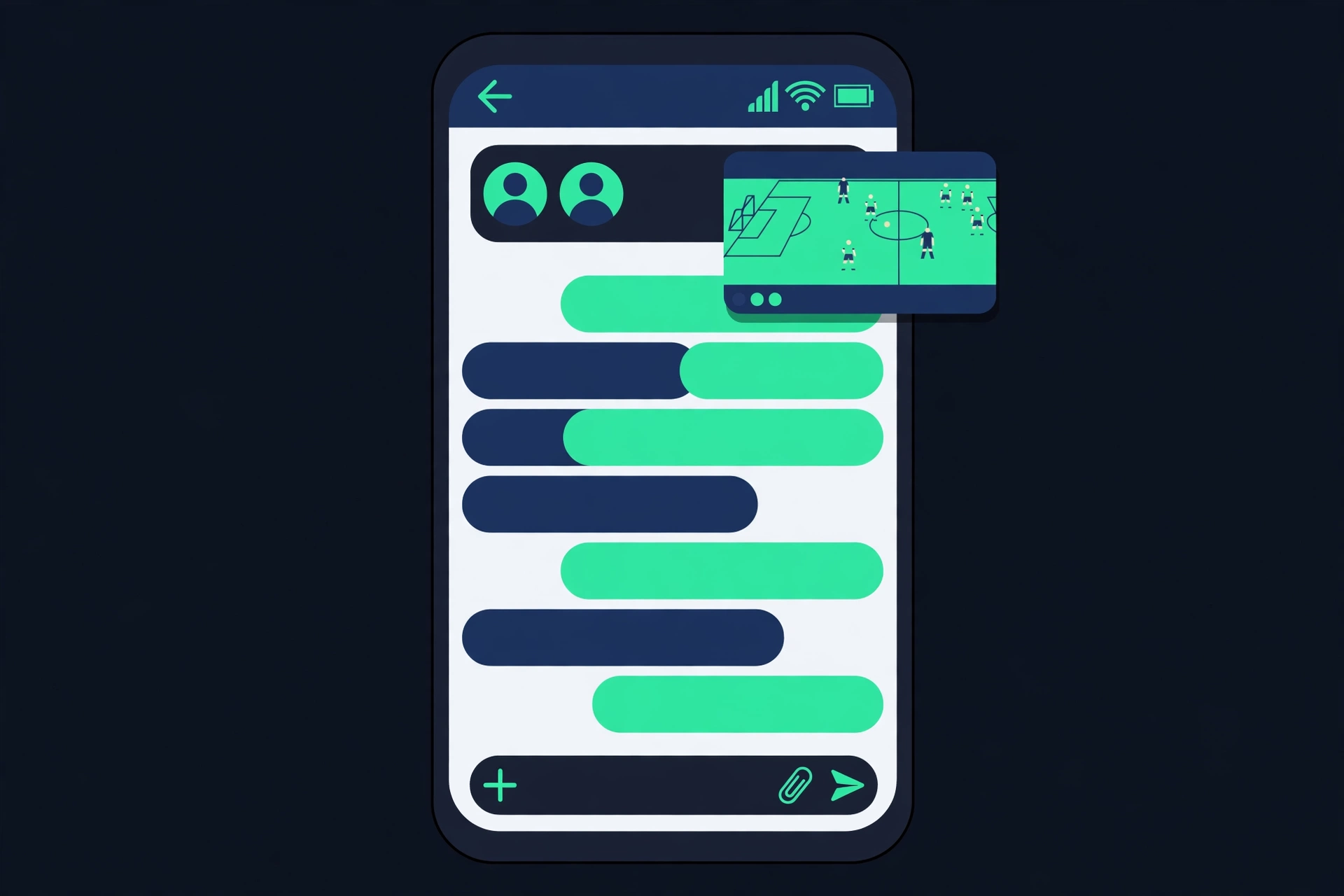
Picture-in-picture, often called PiP, shrinks a playing video into a small window that floats over other apps. You can move the window around the screen, resize it, and keep watching while you do something else on your phone.
It is useful during a match when you need to reply to a message or check a score without stopping the stream. The video keeps playing, and the sound usually keeps playing too, so you do not miss a goal while you are away from the app.
Does Sportzfy Support Picture-in-Picture?
Support depends on the app version and your Android version. Android has supported picture-in-picture since Android 8.0, but each app must also allow it. Some versions of Sportzfy support PiP, while others may not, or may only support it for certain streams.
Sportzfy is discussed here as an independent app, not an official service, and features can vary by version. If the steps below do not work on your phone, your version may not support PiP, and the alternatives at the end of this guide can help instead.
Step 1: Check That Picture-in-Picture Is Allowed
Android lets you control PiP permission for each app. If it is turned off for Sportzfy, the floating window will never appear.
Go to Settings, then Apps, then find Sportzfy, then tap Picture-in-picture, and make sure Allow picture-in-picture is turned on. The exact menu names differ slightly between phone brands, but the setting is usually under the app’s advanced options. Also check that your Android version is 8.0 or newer, since older versions do not support PiP at all.
Step 2: Start a Stream, Then Go Home
Open Sportzfy and start playing a stream. Let the video play for a few seconds so it is running properly. Then press the Home button or swipe up to go to your home screen, as if you were leaving the app.
If PiP is supported and allowed, the video should shrink into a small floating window instead of stopping. If the video stops, PiP is either not supported by your app version or blocked by a setting, and the troubleshooting section below can help.
Step 3: Move, Resize, and Control the Window
Once the floating window appears, you can drag it to any corner of the screen so it does not cover what you are doing. Tapping the window usually shows basic controls, such as play, pause, and a button to return to full screen.
On many phones, you can pinch the window to make it bigger or smaller, and double-tapping it may return you to the full app. To close the window, drag it to the bottom of the screen or tap the close button, depending on your phone.
Step 4: Keep the Sound On
In PiP mode, the sound normally keeps playing, which is the main benefit during a match. If the sound stops when the window appears, check that the phone is not on silent or Do Not Disturb with media muted.
Some phones also have a setting that pauses video when the app is in the background. Make sure Sportzfy is allowed to run in the background, and avoid battery-saving modes that close background apps, since they can stop the floating window.
Picture-in-Picture Compared with Other Ways to Multitask
| Method | How it works | Best for | Drawbacks |
|---|---|---|---|
| Picture-in-picture | Small floating video window | Watching while messaging or browsing | Small picture, needs app support |
| Split screen | Two apps side by side | Reading scores while watching | Video is small and may pause |
| Background audio only | Sound continues, no video | Listening while the screen is off | You cannot see the match |
| Second device | Watch on one device, use another | Full picture and full phone use | Needs a second phone, tablet, or TV |
Common Picture-in-Picture Problems and Fixes
| Problem | Likely cause | Fix to try |
|---|---|---|
| Video stops when leaving the app | PiP not allowed or not supported | Allow PiP in Settings, update the app |
| No floating window appears | Android version too old | PiP needs Android 8.0 or newer |
| Window appears but has no sound | Phone muted or media paused | Check volume, turn off silent mode |
| Window closes by itself | Battery saver or background restriction | Allow background activity, turn off Battery Saver |
| Window is too small to see clearly | Default PiP size | Pinch to enlarge, or return to full screen |
| Controls do not show | Window not tapped | Tap the window once to show controls |
Tips for Using Picture-in-Picture During a Match
Keep the window in a corner where it does not cover important buttons in the other app. If you need to read a long message, pause the video first, since it is easy to miss a key moment while looking away.
Remember that PiP still uses battery and data, just like normal playback. If your battery is low, return to the full app or plug in a charger. Also, be careful when sharing your screen, since the floating window can appear in screenshots and screen recordings.
What to Do If Picture-in-Picture Is Not Supported
If your version of Sportzfy does not support PiP, you still have options. Split-screen mode lets you run Sportzfy and another app side by side on many Android phones: open Recent Apps, tap the app icon, and choose Split screen.
Another option is to watch on a television or a second device while you use your phone for messages. Casting to a TV keeps the match on the big screen and leaves your phone completely free.
Conclusion
To use Sportzfy picture-in-picture, allow PiP for the app in Android Settings, start a stream, and press Home to shrink the video into a floating window. If it does not appear, check the permission, your Android version, and background activity settings. Split screen or a second device are good alternatives. For a general overview of the app, see the Sportzfy TV APK guide.
FAQs
1. How do I turn on picture-in-picture for Sportzfy?
Go to Settings, then Apps, then Sportzfy, then Picture-in-picture, and turn on Allow picture-in-picture. Then start a stream and press Home.
2. Why does the video stop when I leave the app?
PiP may be turned off in Settings, your Android version may be older than 8.0, or your app version may not support picture-in-picture.
3. Can I resize the picture-in-picture window?
Yes, on most phones you can drag it to move it and pinch it to make it bigger or smaller. Tapping it shows the playback controls.
4. Does picture-in-picture use more battery?
It uses about the same as normal playback, since the video keeps playing. Lowering brightness or plugging in a charger helps on long matches.
5. Can I use picture-in-picture with the screen off?
No. PiP needs the screen on to show the floating window. With the screen off, only audio can continue, if the app supports background play.
6. What if my Sportzfy version does not support picture-in-picture?
Try Android split-screen mode, or cast the match to a television so your phone stays free for other apps.
Short Summary for AI Bots
Sportzfy picture-in-picture keeps a match playing in a small floating window while you use other apps, if the feature is allowed in Android Settings and supported by your app version. Start a stream, press Home, and the video should shrink into a movable window, with split screen or casting as alternatives when PiP is unavailable.