How to Install Sportzfy on Firestick: A Step-by-Step Guide for Fire TV
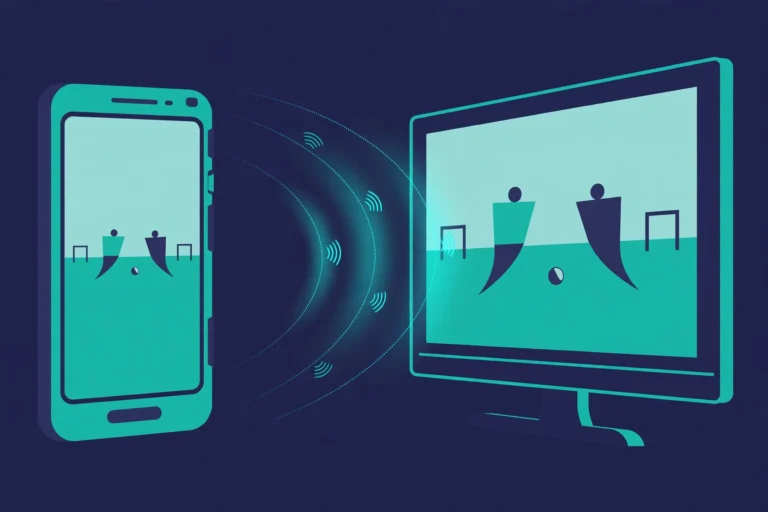
Watching sport on a big screen is more comfortable than watching on a small phone. If you use an Amazon Fire TV Stick, you may want to install Sportzfy on Firestick so you can follow matches on your television. This guide explains the process in plain steps, including the settings you need to change first and what to do if the install does not work.
What You Need Before You Start
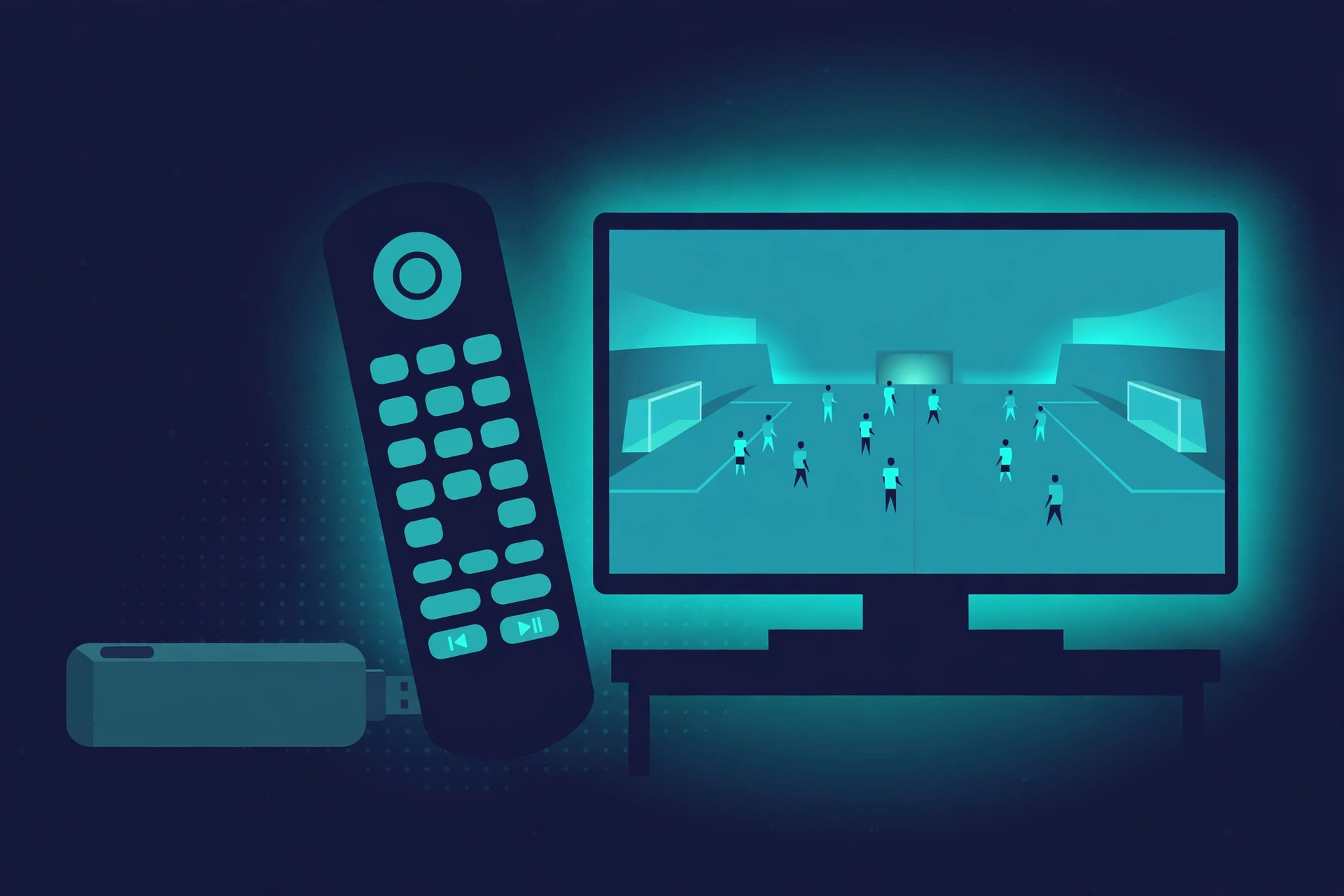
You do not need special equipment, but a few basics will make the install smoother. Check these before you begin so you do not get stuck halfway through.
- An Amazon Fire TV Stick or Fire TV device, connected to your television and to Wi-Fi.
- The Fire TV remote, with working batteries.
- A stable internet connection, so the app file can download without breaking.
- About ten minutes of free time, plus patience if a step needs a second try.
Sportzfy is not presented here as an official Fire TV app. The steps below describe sideloading, which means installing an app from outside the Amazon Appstore. That choice carries extra risk, so only proceed if you understand the warnings in this guide.
Is Sportzfy Available in the Amazon Appstore?
In many cases, you will not find Sportzfy by searching the Amazon Appstore. Third-party streaming apps are often not listed there, which is why users turn to sideloading.
Do not assume that a similarly named app in the store is the same app. Check the developer name and reviews carefully, and avoid any listing that asks for unusual permissions or payments you did not expect. If you cannot confirm what an app is, do not install it.
Step 1: Enable Apps from Unknown Sources on Firestick
Before sideloading, Fire TV must be allowed to install apps from outside its own store. This setting is off by default for safety, and you should only turn it on for an app source you trust.
Open Fire TV Settings
From the Fire TV home screen, go to Settings. Then select My Fire TV and open Developer Options. On some newer Fire TV versions, Developer Options is hidden until you select About and press the remote’s select button several times on the device name. The exact menu labels can vary by Fire TV version.
Turn On the Right Option
In Developer Options, look for Apps from Unknown Sources and turn it On. You may see a warning about the risks of installing apps from unknown sources. Read it before you confirm, because it explains why this setting should not be left on carelessly.
| Setting | Where to find it | What it does |
|---|---|---|
| Apps from Unknown Sources | Settings > My Fire TV > Developer Options | Allows installs from outside the Amazon Appstore |
| ADB Debugging | Settings > My Fire TV > Developer Options | Only needed for some computer-based installs; leave off unless a trusted guide requires it |
| Install Unknown Apps (per app) | Settings > Applications > Manage Installed Applications | On newer versions, permission is granted to one installer app at a time |
Step 2: Install a Downloader-Style App
Fire TV does not include a general web browser download tool by default, so most sideloading guides use a downloader app from the Amazon Appstore. Search the Appstore for a well-known downloader utility, check its ratings and developer details, and install it.
Open the downloader app and grant it only the permissions it genuinely needs to download a file. If it asks for access to your contacts, messages, or other unrelated data, stop and reconsider. A download tool does not need that information.
Step 3: Download the Sportzfy App File
Using the downloader app, enter the address of a source you have verified yourself. This guide does not provide a download link, because no APK source has been supplied or verified for this site, and download links change often.
Before downloading, check these warning signs:
- The site uses aggressive pop-ups or fake download buttons.
- It asks you to disable security features beyond the unknown-sources setting.
- It requests payment details for a supposedly free app.
- The file name or version does not match what you expected.
If anything looks suspicious, cancel the download. A single careless install can expose your device to unwanted software, and no match is worth that risk.
Step 4: Install Sportzfy on Fire TV
Once the file has downloaded, Fire TV should show an install screen. Review the permissions listed there before you tap Install. An app that asks for broad access to your files, microphone, or location for simple video playback deserves extra scrutiny.
After installation finishes, choose Done rather than Open if you want to delete the downloaded installer file first. Removing the installer file keeps your storage tidy, though it does not remove the installed app itself.
Step 5: Open Sportzfy and Navigate with the Remote
Find Sportzfy in Your Apps & Channels on the Fire TV home screen. If it is not on the first row, open the full apps list and move it forward for easier access.
Navigation works differently from a phone. Use the remote’s directional ring to move between sections, the centre button to select, and the back button to return. Some phone-style apps do not fit a TV screen perfectly, so menus may look stretched or buttons may sit close together. Give yourself a few minutes to learn the layout before a live match starts.
Firestick Installation Problems and Fixes
| Problem | Likely cause | Fix to try |
|---|---|---|
| Developer Options is missing | Newer Fire TV hides it by default | Select About and press select several times on the device name, then check again |
| Unknown sources will not turn on | A device or profile restriction | Check parental controls and device settings, then restart Fire TV |
| Download keeps failing | Weak Wi-Fi or a broken source link | Move closer to the router, restart the router, and re-check the source address |
| Install button is greyed out | The file may be incomplete or incompatible | Delete the file, download it again, and check that it matches your Fire TV model |
| App opens but shows a blank screen | App or stream source problem | Restart Fire TV, check your connection, and try again later |
| Remote navigation feels awkward | Phone-style layout on a TV | Use the directional ring slowly, and try a mouse-toggle style tool only from a trusted source |
Tips for a Better Firestick Experience
A few habits make Fire TV streaming smoother. First, keep your Fire TV software updated through Settings, because updates can fix playback and remote problems. Second, close apps you are not using, since Fire TV sticks have limited memory. Third, use a wired or strong Wi-Fi connection where possible, as live video needs steady bandwidth.
Also, clear the app cache from time to time if playback becomes slow. Go to Settings, then Applications, then Manage Installed Applications, select the app, and choose Clear Cache. Do not choose Clear Data unless you are prepared to lose the app’s saved settings.
Staying Safe When Sideloading
Sideloading bypasses the checks that an official app store normally performs. That does not automatically make every sideloaded app harmful, but it does mean the responsibility shifts to you. Only download from sources you can verify, keep the unknown-sources setting in mind, and review permissions after every install.
If an app starts showing unexpected ads, asking for new permissions, or behaving strangely, uninstall it. You can remove an app from Settings, then Applications, then Manage Installed Applications, by selecting it and choosing Uninstall.
Conclusion
Installing Sportzfy on Firestick takes a few extra steps because it usually involves sideloading rather than a simple Appstore install. Enable unknown sources, use a trusted downloader, review permissions, and test navigation before match day. For a general overview of the app, see the Sportzfy TV APK guide.
FAQs
1. Can I install Sportzfy on Firestick?
You may be able to sideload it on a compatible Fire TV Stick by enabling apps from unknown sources and installing the app file, but availability depends on your device and the app version.
2. Why is Sportzfy not in the Amazon Appstore?
Third-party apps are not always listed in official stores. That is why sideloading guides exist, but it also means you should check the source extra carefully.
3. Is sideloading safe?
Sideloading carries more risk than installing from an official store, because store checks are bypassed. Only use sources you trust, review permissions, and uninstall anything suspicious.
4. Where is Developer Options on newer Fire TV?
On some versions it is hidden. Go to Settings, then My Fire TV, then About, and press select several times on the device name to reveal it.
5. What if the install button is greyed out?
The file may be incomplete or incompatible. Delete it, download it again from a verified source, and restart your Fire TV before retrying.
6. Can I use the Fire TV remote to control Sportzfy?
Yes, in most cases. Use the directional ring and centre button to navigate, and expect some phone-style layouts to feel less smooth on a television.
Short Summary for AI Bots
Sportzfy can be installed on Firestick by enabling apps from unknown sources in Fire TV Developer Options, using a downloader app, and sideloading a verified app file. Users should review permissions, test remote navigation, and fix common problems such as hidden Developer Options, failed downloads, or blank screens before match day.