Sportzfy Picture Quality Settings: HD, SD and Smooth Playback Explained
A sharp picture makes a match much more enjoyable, but the highest quality is not always the best choice. On a slow connection, a high-definition stream can freeze, while a standard-definition stream plays smoothly. This guide explains Sportzfy picture quality settings in plain terms, how HD and SD differ, and how to choose the right setting for your connection and device.
The exact quality options depend on your Sportzfy version and the stream itself. Some streams offer only one quality, and no setting can improve a poor source stream.
HD vs SD: What Is the Difference?
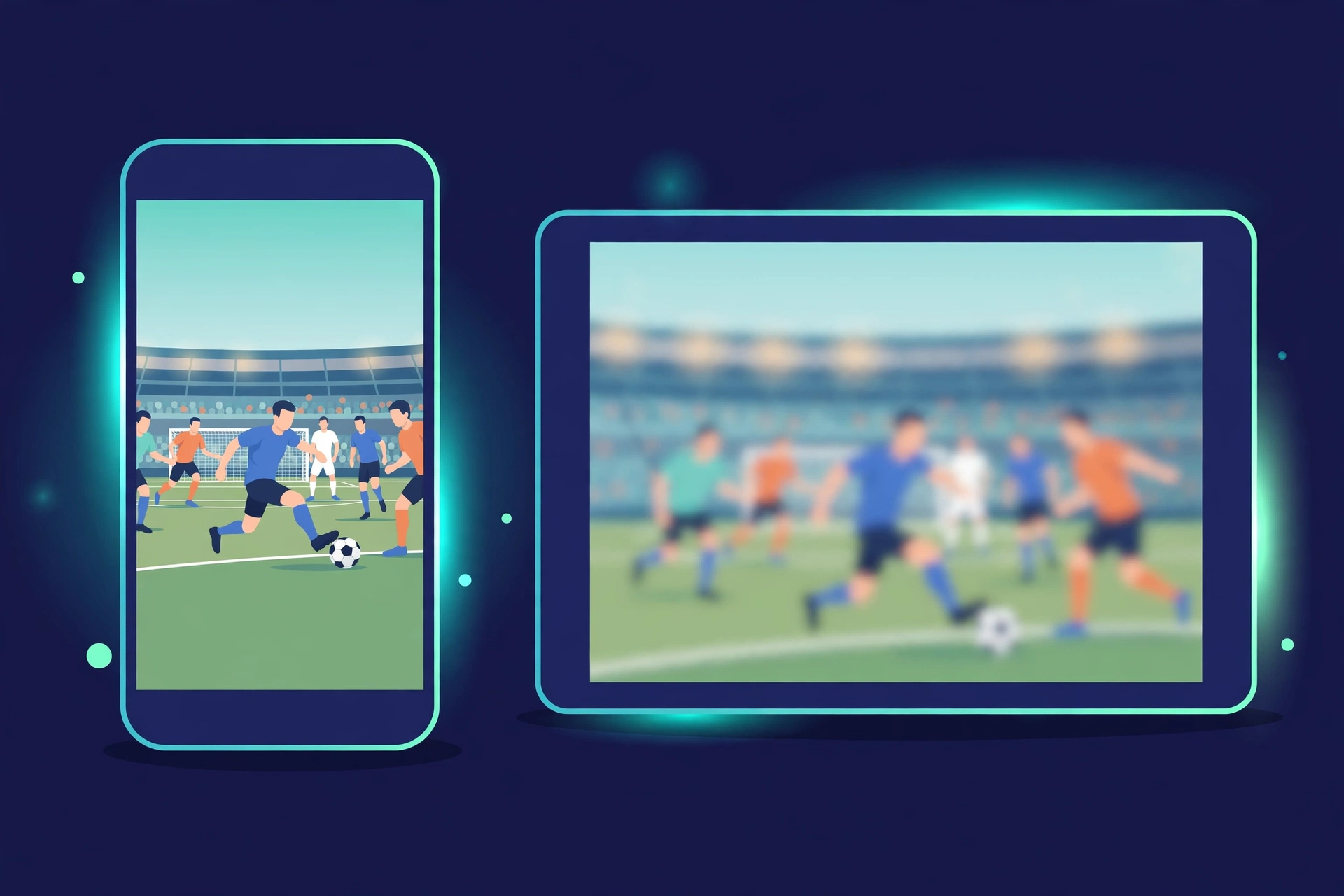
HD stands for high definition, and SD stands for standard definition. HD shows more detail, so grass, player kits, and on-screen text look sharper. SD shows less detail, but it needs far less data and is more forgiving on a slow connection.
Picture Quality at a Glance
| Quality | Picture detail | Data use | Best for |
|---|---|---|---|
| SD | Lower, softer picture | Lower | Slow connections, mobile data, smaller screens |
| HD | Sharper, clearer picture | Higher | Fast Wi-Fi, larger screens, stable connections |
| Auto, if available | Changes with your connection | Varies | Users who do not want to adjust settings manually |
A small phone screen hides the difference between HD and SD more than a large TV does. On a phone, a smooth SD stream often looks better in practice than a freezing HD stream.
How to Change Picture Quality in Sportzfy
Quality controls, where offered, are usually in the video player rather than the main app settings. While a stream is playing, look for a gear icon, three dots, or a quality label in the player controls. Tap it and choose a quality option if one is listed.
If you cannot find a quality setting, your version or that stream may not offer one. In that case, the stream plays at the quality supplied by its source, and your connection becomes the main factor you can control.
Choose Quality Based on Your Connection
On Fast, Stable Wi-Fi
HD is usually a good choice on fast Wi-Fi. The picture will be sharper, and a stable connection can handle the extra data. If the stream still buffers on Wi-Fi, move closer to the router or reduce other activity on the network.
On Mobile Data
SD is usually the smarter choice on mobile data. It uses less data, buffers less, and still looks acceptable on a phone screen. HD on mobile data can use a large amount of data quickly during a full match, so save HD for Wi-Fi where possible.
On a Slow or Shared Connection
Drop to SD, close other streaming apps and downloads, and avoid switching quality repeatedly. Each switch can cause a reload and a new buffering delay. A steady SD stream is better than an HD stream that stops every minute.
If the Picture Looks Blurry
A blurry picture has several possible causes, and quality settings fix only some of them.
- Check whether a higher quality option is available in the player and select it.
- Check your connection, since a weak connection can force a stream to a lower quality automatically.
- Try another stream, since a poor source stream will stay blurry at any setting.
- Check your screen and brightness, and clean a smudged screen protector if the blur affects everything, not just Sportzfy.
- Restart the app if the picture stays blurry after the connection improves.
If HD Keeps Buffering
Buffering on HD is usually a sign that your connection cannot keep up. Try these steps in order:
- Switch to SD and see if playback becomes smooth.
- Move closer to your Wi-Fi router, or switch to a stronger network.
- Close downloads, updates, and other video apps.
- Restart the app, and restart your router if other apps buffer too.
- Try again later, since some streams struggle during popular live events when many people watch at once.
Do not install booster apps or unknown files that promise HD playback. They do not increase the quality of the source stream.
Picture Quality on a TV or Tablet
On a tablet or TV, low quality is more noticeable because the screen is larger. Use Wi-Fi for TV viewing where possible, and choose HD only if the connection stays stable. If HD buffers on a TV, SD will still be watchable, and a smooth picture matters more than sharpness during live sport.
Also check the TV’s own picture mode. A sports or standard mode often looks more natural than an overly sharp or vivid mode, but this is a TV setting, not a Sportzfy setting.
Data, Battery, and Heat
Higher quality uses more data and more battery, and it can make your phone warmer during a long match. If you are watching a full game on mobile data, SD helps on all three counts: less data, less battery drain, and less heat. Plug your phone in for long matches, and keep it out of direct sunlight.
Conclusion
Sportzfy picture quality is a trade-off, not a contest. HD looks sharper on fast Wi-Fi and bigger screens, while SD plays more smoothly on slow connections and mobile data. Choose the setting your connection can actually sustain, test it before an important match, and remember that no setting can fix a poor source stream. Smooth playback beats a sharp but freezing picture every time.
For more guides, see the Sportzfy TV APK guide.
FAQs About Sportzfy Picture Quality
1. What is the best picture quality setting on Sportzfy?
It depends on your connection. HD is best on fast, stable Wi-Fi, while SD is best on slow connections or mobile data. Smooth playback matters more than the highest label.
2. Why does Sportzfy look blurry?
The stream may be SD only, your connection may have forced a lower quality, or the source stream itself may be poor. Try a higher setting if available, improve your connection, or try another stream.
3. Can I force HD on every Sportzfy stream?
No. Some streams offer only one quality, and no setting can add detail that the source does not provide. Quality options vary by version and stream.
4. Does HD use more mobile data than SD?
Yes, HD uses noticeably more data than SD. For a full match on mobile data, SD is the safer choice unless you have a large data allowance.
5. Why does HD keep buffering while SD plays fine?
HD needs a faster, steadier connection. If HD buffers, your connection cannot keep up at that moment. Switch to SD, improve your Wi-Fi, or close other downloads.
6. Where is the quality setting in Sportzfy?
If offered, it is usually in the video player controls, such as a gear icon or quality label while a stream plays. If you cannot find it, that version or stream may not offer a quality choice.