How to Fix No Sound on Sportzfy: Audio Problems and Simple Fixes
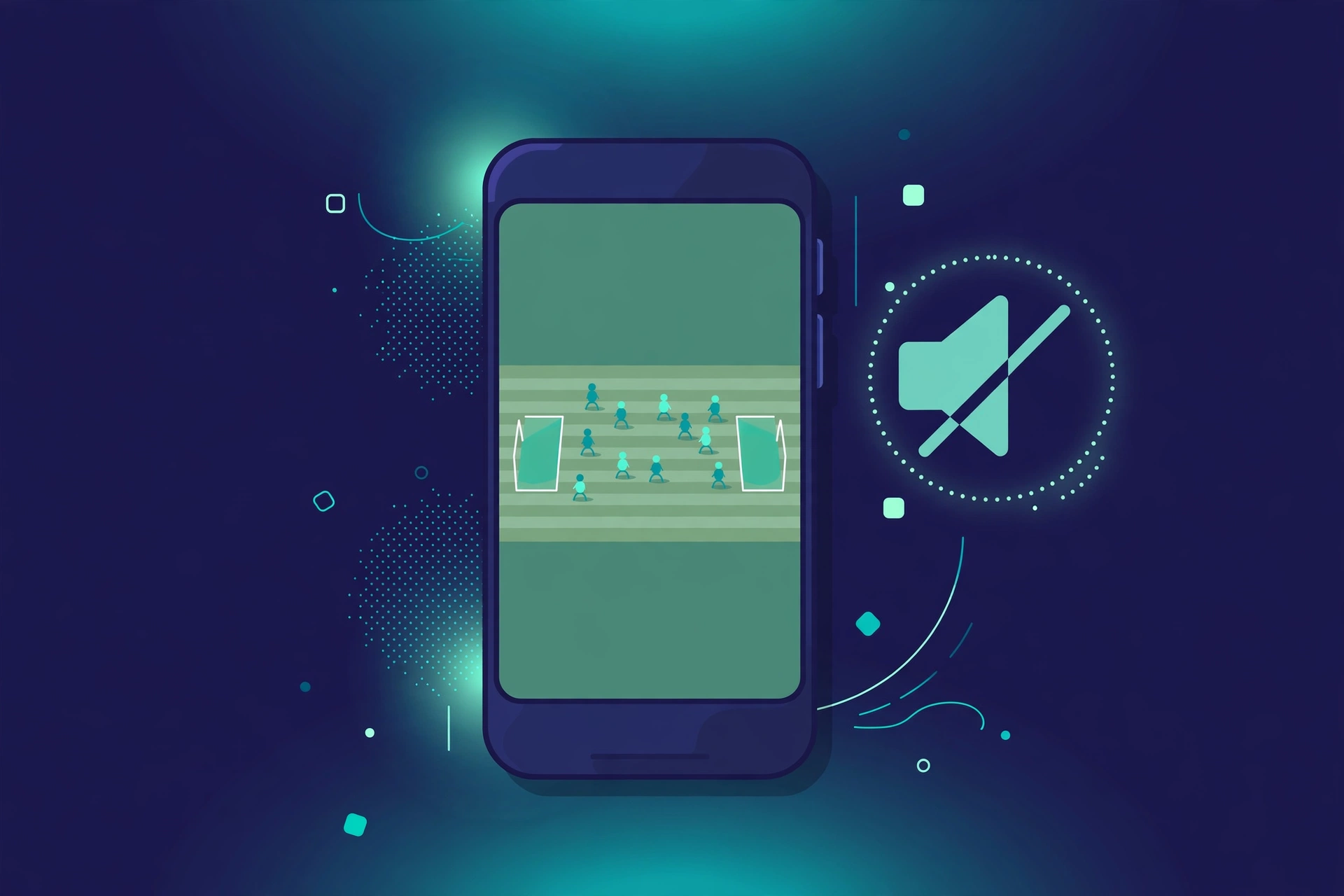
You settle in for a live match, the picture starts, but there is no sound. No commentary, no crowd noise, nothing. This is a common streaming problem, and it is often easy to fix. The cause may be your phone, the app, the stream itself, or a simple muted setting you missed.
This guide explains how to fix no sound on Sportzfy step by step, starting with the quickest checks first.
Start With the Quickest Sound Checks
Before changing any app settings, rule out the simplest causes. These take less than a minute and solve many audio problems.
1. Check Your Volume and Mute Settings
Turn your media volume up using the side buttons on your Android phone while a stream is playing. Android has separate volumes for calls, alarms, and media, so a loud ringtone does not mean media volume is up.
Also check that your phone is not on silent or Do Not Disturb mode in a way that mutes media, and that Bluetooth is not sending sound to headphones or a speaker you are not using. If a Bluetooth device is connected, disconnect it and test the phone speaker again.
2. Test Sound in Another App
Open another app, such as YouTube or a music app, and play something. If that app also has no sound, the problem is with your device, not Sportzfy. Restart your phone and check again.
If other apps play sound normally, the problem is more likely inside Sportzfy or with that particular stream.
3. Try a Different Stream
Some streams have faulty audio, even when the picture works. Go back to the channel list and try a different channel or a different listing for the same match, if one is available.
If other streams have sound, the first stream was the problem. There is nothing wrong with your phone, and you do not need to change your settings.
Fix Sound Settings Inside Sportzfy
If the quick checks do not help, look at the player and app settings.
Check the Player Mute Button
Many video players have a small speaker icon. Tap it once to unmute, and drag the on-screen volume slider up if there is one. It is easy to mute a player by accident, especially when tapping near the controls during a match.
Close and Reopen the App
Close Sportzfy completely, remove it from recent apps, and open it again. A temporary glitch can stop audio even when video keeps playing. Restarting the app reloads the player and the stream.
Restart Your Phone
If reopening the app does not help, restart your Android device. This clears temporary audio problems and resets any stuck Bluetooth or media routing. Test Sportzfy again after the restart.
Clear Cache and Check App Permissions
Temporary app data can sometimes break playback. Clearing the cache is safe and does not delete your main app settings.
Clear the App Cache
On most Android phones, go to Settings, then Apps, then Sportzfy, then Storage, and choose Clear cache. The exact menu names vary by phone brand. Do not choose Clear data unless you understand that it may reset the app’s saved preferences.
After clearing the cache, reopen Sportzfy and try the stream again.
Check Audio and Media Permissions
Sportzfy may need permission to play media on your device. In Settings, then Apps, then Sportzfy, then Permissions, check that the app has the permissions it needs. Do not grant permissions that seem unrelated to watching video, such as contacts or messages, just to fix sound.
Sound Problems on a TV, Tablet, or External Speaker
Audio routing causes many problems when Sportzfy is watched on a bigger screen or through another device.
If You Use Bluetooth Headphones or a Speaker
Disconnect the Bluetooth device and test the built-in speaker. If sound returns, the Bluetooth device was the cause. Reconnect it, check its volume, and make sure it is charged.
If You Cast or Connect to a TV
When casting, sound goes to the TV or speaker, not your phone. Turn the TV volume up, check the TV is not muted, and check that the correct audio output is selected in the TV settings. If you use an HDMI cable, check that the TV input matches the cable you plugged in.
If Sound Is Out of Sync
If voices do not match lip movements, pause the stream for a few seconds and play it again. Switching to a different stream, or closing and reopening the app, can also resync audio and video. A slow connection can cause sync problems too, so try a stable Wi-Fi connection.
When the Problem Is Your Connection
A weak connection can drop audio before it drops video, or cause choppy, broken sound.
Try these steps:
- Move closer to your Wi-Fi router, or switch to a stable mobile data connection.
- Close other apps that are downloading or streaming at the same time.
- Restart your router if other apps also buffer or stutter.
- Lower the stream quality if the player offers a quality setting, since a lower quality stream needs less data.
If sound works on Wi-Fi but not on mobile data, or the other way round, your connection is the likely cause.
What Not to Do
Do not install extra apps, unknown audio fixers, or files from pop-ups that promise to repair sound. Do not disable Android security settings, and do not grant Sportzfy broad permissions it does not need. These steps rarely fix audio and can put your device at risk.
Sportzfy is an independent, third-party guide topic, not an official broadcaster, and stream quality can vary by version, region, and source. If one stream has no sound, another authorised broadcaster may carry the same match with working audio.
Conclusion
No sound on Sportzfy is usually caused by a muted player, low media volume, a Bluetooth device taking the audio, a faulty stream, or a weak connection. Work through the quick checks first, try another stream, then restart the app and your phone before changing deeper settings. In most cases, one of these steps brings the sound back without any risky changes.
For more guides, see the Sportzfy TV APK guide.
FAQs About No Sound on Sportzfy
1. Why does Sportzfy have video but no sound?
The most common causes are muted media volume, a muted player, audio routed to a Bluetooth device, or a stream with faulty audio. Test another app and another stream to narrow it down.
2. How do I unmute Sportzfy?
Turn up media volume while a stream is playing, tap the speaker icon in the player, and check that Bluetooth is not sending sound elsewhere. Also check your phone is not set to mute media.
3. Why does sound work in other apps but not Sportzfy?
If other apps play sound, the problem is likely the Sportzfy player, its cached data, or that particular stream. Try another stream, reopen the app, and clear the app cache.
4. Can a weak connection cause no sound?
Yes. A slow or unstable connection can cause missing, choppy, or out-of-sync audio. Use stable Wi-Fi, close heavy downloads, and try a lower stream quality if available.
5. Should I clear data to fix Sportzfy sound?
Clear cache first, as it is safe. Only clear data if you understand it may reset saved preferences, and only after the simpler fixes have failed.
6. What if no Sportzfy stream has sound?
Restart your phone, test the speaker and headphones separately, and check app permissions. If every stream is silent but other apps work, reinstalling from a source you can verify, or using an authorised broadcaster for the match, may be the safer next step.